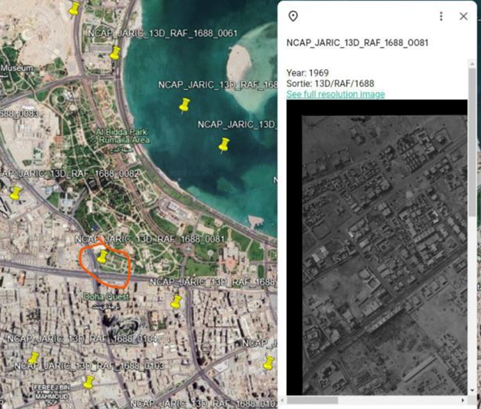
This collection contains over 9,000 historical aerial photos of Qatar and some of its neighboring countries, taken by American or British military airplanes. The collection includes 55 flights (missions) between 1944 and 1983. QNL is acquiring almost 30,000 additional photos to this collection, which should be available to QNL Patrons in early 2025.
Key access terms:
- Online access to the NCAP Collection is provided only to registered QNL Patrons with active library cards, for non-commercial use.
- Photos from the NCAP Collection are displayed online and can be downloaded by QNL Patrons in 300 pixels/inch resolution.
- QNL can provide access to Photos from the NCAP Collection in 1,200 pixels/inch resolution upon patrons’ requests, on a case-by-case basis, for research, academic, and other non-commercial uses.
Please contact us in case of any questions or comments: [email protected]
How to access the images on your computer?
Access to this collection is currently provided via the Google Earth platform using a web browser. To display the location markers of the photographs, and to then access the images, please follow these instructions:
A. Authorize your web browser for online access to the photos.
- Open the web browser window you want to use to access the photos.
- Open the following link in your browser:

3. You will be asked to log in with your QNL patron credentials:
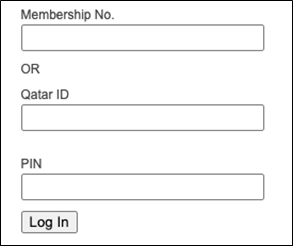
- After the successful login, you should see the following confirmation message in your browser:
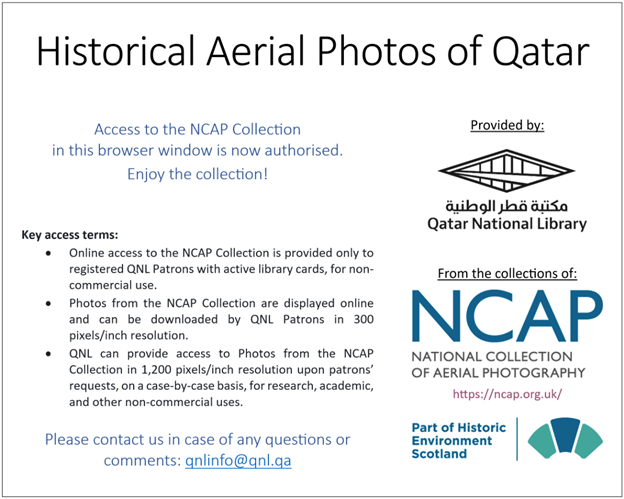
This means that your browser is now successfully authorized, and you should be able to access the NCAP photos in this browser. See below for next steps.
Note: The web browser must be re-authorized each time you start a new session. So, for example, if you close the browser and open it again a few hours later, you can only access the photos again by repeating the above steps.
B. Download the index file with photos and load it to Google Earth
- To browse the photos in the web browser, you will need a spatial index file with all the photos marked on the map. This file can be downloaded in your authorized web browser from the following link:
2. Once you download the file, open Google Earth in your authorized web browser.
3. Import (load) the index file as a new “Local KML file” (or drag-and-drop the file onto the Google Earth website):
b. Click “Local KML file”
c. Click “Import”
d. Choose the index file that you’ve just downloaded – it should be in your usual location for downloaded files under the filename “NCAP-Qatar-Batch-1.2.kml”
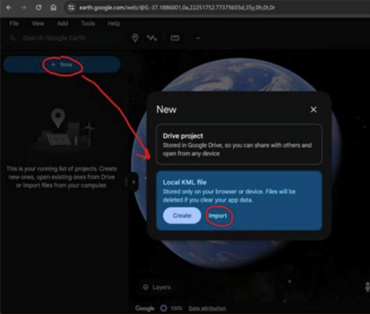
4. The loaded data should appear on the left-hand side, with an index of years (see below). By default, all years are hidden (icon with a crossed eye) to avoid a large number of markers that would appear on the map otherwise.
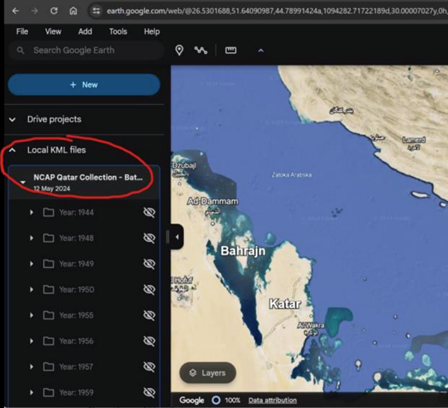
Now you are ready to start exploring the photos (see below).
Note: If you will be using the same computer and web browser to browse the photos, the loaded index file will most likely remain available on Google Earth. In case it’s missing after re-opening the browser, repeat the points above to re-authorize your web browser and to download the index file and load it into Google Earth.
C. Exploring the historical aerial photos in Google Earth
- Once the index file is loaded into Google Earth, you can choose markers from which year(s) you want to make visible on the map. Within each year, there is a list of flights (missions or sorties) from that year included in the collection, and within each sortie, there is a list of photos.
At each level (year, flight, photo), you can control what’s hidden and what’s visible on the map view. You can reveal a specific element by clicking on the crossed eye icon, and you can hide it again by clicking on the non-crossed eye symbol.
Each photo from a year that is "revealed" on the left will be presented as a yellow pin on the map.
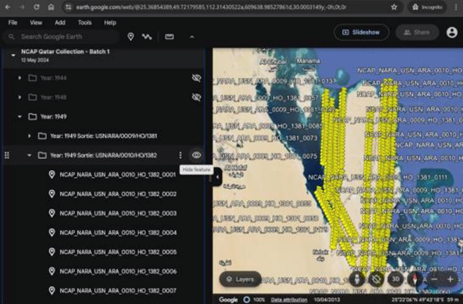
2. Clicking on the pin will open an additional window with the photo preview and a link leading to the opening of a moderate-resolution file (300 ppi) in a separate browser tab.